Secure Android App Development: Best Practices for Protecting User Data
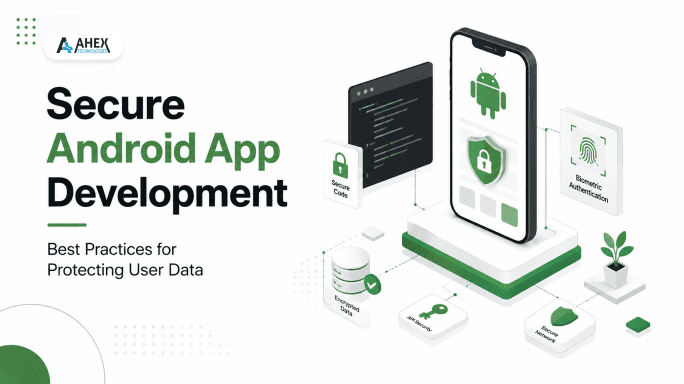
There are more than 3 billion active Android devices in the world. Every device is a possible entry point. If your app handles user data, you are part of the attack surface — and staying current with Android app development trends means security can’t be an afterthought.
Here is the hard truth. Most data breaches do not come from master hackers. They happen because a developer left a secret token in SharedPreferences. Or maybe they used usesCleartextTraffic=”true” for a test server and forgot to change it back. Small mistakes cause big problems. IBM reports that a data breach costs about $4.9 million on average. For a mobile startup, a leak like that can destroy the whole company.
Let’s talk about how to actually keep user data safe on Android. We will skip the boring theory. Instead, let’s look at the daily choices that make your app truly secure.
Assume the device is hostile
This is the mindset that changes everything. On the backend server, you control the machine. On mobile, you do not. Your app runs on a phone that might be rooted. It might run a modified OS. It might be in the hands of an attacker.
Once you accept that you do not control the device, your design choices get easier. You stop trusting the app. You stop assuming your API is only called by normal users. You start encrypting things you used to leave unprotected — the same discipline that underpins zero trust security models on the backend.
OWASP tracks this in their Mobile Top 10 list. It shows the most common ways apps get hacked. Bad data storage, weak encryption, and poor network security are always at the top. These are common issues, but you can prevent all of them — and getting the fundamentals of information security right early saves you from re-architecting later.
1. Encrypt data at rest and stop reinventing crypto
A common mistake is saving sensitive data in plain SharedPreferences or an open SQLite database. On a rooted phone, anyone can read this data easily. This matters even more for apps that touch regulated data — if you’re building anything close to HIPAA-compliant app development, encryption at rest isn’t optional, it’s a compliance requirement.
Follow two rules: Never write your own encryption logic. If your code uses Cipher with a hardcoded IV, stop. The Android Keystore exists so your keys never leave secure hardware. On devices with a StrongBox secure element, keys live inside a special, safe chip. Even hackers with root access cannot extract them.
Use the Keystore to protect the keys, and use a trusted library to protect the data. Here is a clean way to do this with Jetpack Security — part of a solid, current Android tech stack:

The keys are generated and stored safely in the Keystore. The data is securely encrypted. You wrote just a few lines of code and got hardware-level security. There is no excuse for saving plain text.
The golden rule: do not store data you do not need. The most secure secret is the one that is not on the device at all.
2. Lock down the network — TLS is table stakes, pinning is armor
Since apps targeting Android 9 (API 28) and up, cleartext HTTP traffic is blocked by default. Good. But developers punch holes in this all the time for convenience and forget to patch them.
Start with a Network Security Config. It’s an XML file that lets you declare your rules explicitly instead of hoping a default holds:

That <pin-set> block is certificate pinning, and it’s your defense against man-in-the-middle attacks. Without it, anyone who can trick the device into trusting a rogue certificate — a malicious Wi-Fi network, a compromised CA, a user who installed a debugging proxy — can read your “encrypted” traffic in the clear.
Two hard-won lessons on pinning: always ship a backup pin (so a certificate rotation doesn’t brick every installed app), and set an expiration so the pins fail open to normal validation rather than locking users out forever when you forget to update.
3. Practice data minimization and respect scoped storage
Every extra piece of data you collect is data you must protect. The best way to protect privacy and security is the same: collect less data. Android 10 and 11 force you to do this with scoped storage. Your app gets its own private folder. It can no longer access the whole file system.
This makes your app much more secure. You cannot accidentally leave sensitive files where other apps can find them. Keep private data in internal storage (context.filesDir). Only use external storage when a file is meant to be shared. Never write sensitive data there. This is especially critical for offline-first Android healthcare apps, which cache sensitive patient data locally by design.
4. Handle permissions like they’re expensive
The runtime permissions have been standard since Android 6.0. Follow the rule of least privilege. Ask for the smallest permission possible, only when you need it, and explain why.
An app that asks for location, contacts, and microphone on the first launch looks very suspicious. Google Play might even ban it. Ask for camera permission when the user actually taps the camera button, not on the loading screen.
Use privacy-friendly options when you can. Need one photo? Use the Photo Picker so you do not need storage permissions. The best permission is the one you never ask for.
5. Authenticate properly and never store the password
Passwords should never touch your device storage, encrypted or not. Authenticate against your server, get back a short-lived token, and let the OS guard the sensitive step — for many apps this starts with a proper Google Sign-In SDK integration rather than a homegrown login form.
BiometricPrompt gives you fingerprint and face unlock backed by the same secure hardware as the Keystore, and critically, you can tie a Keystore key so it’s only usable after a successful biometric check:
Use short token lifetimes, store refresh tokens in EncryptedSharedPreferences at most, and revoke server-side on logout. If a token leaks, you want its blast radius measured in minutes, not months.
6. Plug the UI leaks
Great encryption means nothing if another app takes a screenshot of your user’s bank details. The same applies if they read a password from the clipboard.
For any screen showing sensitive data (like a password or payment details), tell Android to block screenshots and hide the screen in the recent apps list. It takes one line of code in your Activity’s onCreate:
kotlin
Also, watch your clipboard. Starting in Android 13, the OS shows a visual pop-up when text is copied. If your user copies a password, mark it as sensitive. This tells Android to hide the pop-up and block other apps from seeing it:
kotlin
7. Silence your logs in production
This is a very common mistake in Android development. While debugging, it is easy to use Log.d() to print out auth tokens and user data.
If you forget to remove these, they end up in Logcat. Android tries to protect system logs. However, anyone who plugs the phone into a computer can still read them. Some malicious apps can read them too.
Never use android.util.Log directly. Use a tool like Timber. Set up your app so it removes all logs in release builds:
kotlin
if (BuildConfig.DEBUG) {
Timber.plant(Timber.DebugTree())
}
// In release, no tree is planted, meaning logs go nowhere.
8. Obfuscate, and don’t trust attestation you can’t verify
Anyone can pull your APK off the Play Store, unzip it, and read your code. apktool and jadx are free and take about thirty seconds to run. Consistent naming conventions in Android make your code easier for your own team to maintain — but remember they also make an attacker’s job easier if you skip obfuscation.
Enable R8 (it ships with modern Android Gradle plugins) to shrink and obfuscate your release builds:
gradle
buildTypes {
release {
minifyEnabled true
shrinkResources true
proguardFiles getDefaultProguardFile(‘proguard-android-optimize.txt’),
‘proguard-rules.pro’
}
}
Obfuscation won’t stop a determined reverse-engineer, but it turns a five-minute skim into a real project, and it strips out the helpful method names and comments that make an attacker’s life easy.
For the times you genuinely need to know whether a request came from a legitimate, unmodified app on a genuine device, use the Play Integrity API (the replacement for the deprecated SafetyNet Attestation). The catch that trips people up: verify the integrity verdict on your server, not in the app. A check that runs on a device you don’t control can be patched out by the same attacker you’re trying to detect.
9. Your API is the real fortress — defend it there
Here’s the insight that separates senior mobile engineers from everyone else: client-side security is a speed bump, not a wall. Certificate pinning, obfuscation, root detection — all of it can eventually be bypassed by someone with enough patience and a rooted device.
So the client-side controls buy you time and raise the cost of attack. The real enforcement has to live on the server, where the attacker has no reach — the same principle covered in securing .NET Core applications applies regardless of your backend stack:
- Validate and authorize every request server-side. Never assume the app already checked.
- Rate-limit and monitor for anomalies. A user account requesting 10,000 records in a minute is a signal.
- Enforce object-level authorization — the #1 API risk on OWASP’s API Top 10 is one user simply changing an ID in a URL to read someone else’s data.
- Sanitize inputs and use parameterized queries. Use Room or prepared statements so a stray apostrophe can’t become SQL injection.
If a control matters, it runs where you’re in charge.
10. Don’t trust incoming Intents and WebViews
“Assume the device is hostile” applies to other apps on the phone, too. If your app handles Deep Links or App Links, treat the incoming Intent data like user input on a web form: highly suspicious.
Never use implicit intents to pass sensitive data between components, and always validate the host and scheme of any incoming deep link before acting on it. If an attacker can trigger a deep link that says yourapp://transfer?amount=1000, your app needs to ensure the user actually initiated that. This applies whether you’re building natively or with React Native for Android app development, where deep-link handling often crosses a JS bridge.
In the same way, if you use WebViews, lock them down. Disable JavaScript unless absolutely necessary (setJavaScriptEnabled(false)). If you must use JS interfaces (addJavascriptInterface), ensure you are only loading trusted, first-party URLs, as a compromised web page can use that interface to execute arbitrary code inside your app.
11. Patch your dependencies before they patch your users
A striking share of every modern app is third-party code — SDKs for analytics, ads, crash reporting, payments. Studies of mobile codebases routinely find that the majority of an app’s lines come from open-source dependencies, and a meaningful fraction of those carry known vulnerabilities. Even something as common as AdMob integration is a third-party SDK with its own data-collection footprint worth auditing.
You inherit every one of those bugs. Run dependency scanning (gradle dependencyCheckAnalyze, Dependabot, or Snyk) in CI and keep the Android Gradle Plugin and SDK current, and audit what data your analytics and ad SDKs actually exfiltrate. This kind of hygiene is a core part of ongoing app maintenance, not a one-time launch task.
A pre-launch security pass you can run in an afternoon
Before you ship, walk this list:
- usesCleartextTraffic is false, and a Network Security Config is in place.
- No secrets, API keys, or tokens hardcoded in the source (check strings.xml and BuildConfig too).
- Sensitive data lives in EncryptedSharedPreferences / encrypted storage, never plain prefs.
- minifyEnabled true on release builds.
- android:debuggable is false and allowBackup is false for sensitive apps.
- Permissions are requested at point-of-use, and every one is justified.
- All authorization is enforced server-side, not just in the UI.
- Dependencies scanned for known CVEs.
- You’ve actually run jadx on your own release APK to see what an attacker sees.
- FLAG_SECURE is applied to all screens showing payment, auth, or PII data.
- No sensitive data is being written to Logcat (using Timber or similar to strip release logs).
- Incoming Deep Link intents are validated and sanitized before execution.
The bottom line
Secure Android development isn’t about buying a fancy tool or bolting on a “security phase” the week before launch. It’s a set of small, boring habits: encrypt the sensitive stuff, trust nothing from the client, collect less, patch often — repeated on every feature.
Users won’t thank you for it, because good security is invisible. But the day it saves you from being the next breach headline, it’ll be the best code you never had to explain in a press release. Build like the device is hostile. Because sooner or later, one of them will be.
If this list feels like a lot to own on top of shipping features, that’s exactly the gap a dedicated Android app development company fills — and if you’re weighing whether to build in-house or bring in outside help, here’s what to look for when you hire an Android app developer.
Have a product idea or an existing build that needs to scale? Partner with Ahex and close the gaps before your customers find them.
Book a free consultationFrequently Asked Questions
Why shouldn’t developers store sensitive user data in standard SharedPreferences?
Standard SharedPreferences saves data in plain text, making it easily readable on rooted devices via simple terminal commands. Using Jetpack Security’s EncryptedSharedPreferences backed by the Android Keystore keeps keys and values encrypted behind hardware-level protection.
What is certificate pinning and why is standard HTTPS not enough?
Standard HTTPS trusts any valid certificate authority on the phone, leaving traffic vulnerable if an attacker tricks the device into accepting a rogue certificate. Certificate pinning forces your app to trust only your specific server keys, blocking man-in-the-middle attacks on public or compromised Wi-Fi networks.
How can developers prevent screenshots or screen-recording leaks of sensitive screens?
Applying the FLAG_SECURE window flag in your Activity’s onCreate prevents the OS from allowing screenshots or screen captures. It also hides the screen preview in the recent apps switcher whenever sensitive payment details, OTPs, or passwords are displayed.
Why is leaving debug loggers active in production builds dangerous?
Logs written directly with android.util.Log remain readable in Logcat, allowing anyone who connects the device to a computer or malicious apps exploiting local vulnerabilities to extract sensitive tokens. Using logging utilities like Timber strips out release logs automatically.
Does code obfuscation with R8 completely stop reverse engineering?
No, obfuscation is a speed bump rather than an impenetrable wall, as determined attackers can still decompile and analyze your APK with tools like jadx. However, it removes helpful variable names, class structures, and comments, making reverse engineering significantly harder and more time-consuming.
Why must critical security checks be enforced on the server instead of the app?
An attacker with root access controls the mobile device and can bypass client-side checks like root detection or UI restrictions. Enforcing authorization, rate limiting, and input sanitization on the server guarantees security in an environment you fully control.
What security risks do incoming deep links pose to an Android app?
Deep links act like untrusted web forms that external apps can trigger to trick your application into executing unauthorized actions, such as transferring money. Developers must validate the host, scheme, and parameters of every incoming Intent before executing any underlying logic.hic keys in secure hardware, separate from your app’s process. On devices with a StrongBox secure element, keys never leave that isolated chip — not even root access can extract them. It matters because it removes the biggest source of encryption bugs: developers writing their own key-management logic.
How do I store an auth token securely on Android?
Never store passwords on the device. Instead, authenticate against your server, receive a short-lived token, and store that token in EncryptedSharedPreferences (backed by the Keystore) rather than plain SharedPreferences. Use short token lifetimes, tie sensitive actions to BiometricPrompt where possible, and revoke tokens server-side on logout so a leaked token has a limited blast radius.
What is the biggest Android app security mistake developers make?
Trusting the client. Certificate pinning, obfuscation, and root detection can all eventually be bypassed by someone with enough patience. The real security has to live on the server — validating every request, enforcing object-level authorization, and never assuming the app already checked permissions. Client-side controls buy you time; they aren’t the wall itself.
Do I need a security audit before launching an Android app?
Yes, even a lightweight one. A pre-launch pass — checking for hardcoded secrets, disabled cleartext traffic, minifyEnabled on release builds, FLAG_SECURE on sensitive screens, and scanned dependencies — catches the majority of real-world breach causes in an afternoon. It’s far cheaper than fixing a leak after launch.