Google AdMob Integration for Android Apps – Complete Guide with User Sign-In
Ad Mob is a mobile ad network that helps you earn money from your Android app. By using Google Sign-In SDK Integration for Android apps, you can make more money and understand your users better. It works great for free apps where you want to earn without charging users.
In this guide, we’ll build a simple app to show Banner Ads that AdMob supports. We’ll also show you how to use Google Sign-In Android to make your app better.
What Are the Types of AdMob Ads?
AdMob currently offers below types of ad units. You can choose the ad format depending on your app criteria.
Banner Ad
Banner ad : Banner ads use only a small part of your screen. They come in different sizes: Standard, Medium, Large, Full-Size, Leaderboard, and Smart Banner. Smart banners are great if you target many device sizes because they fit the ad to match the screen.
Interstitial Ad
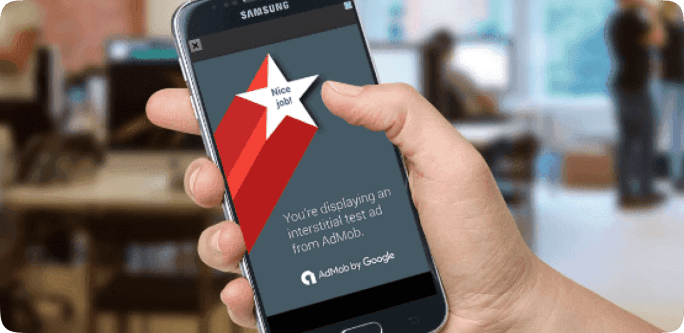
Interstitial ads : Interstitial ads fill your whole screen. They show at the right time – between screens or after a user does something. You often see these in games when you finish a level.
Rewarded Video Ad
Rewarded video Ad : Rewarded video ads are full-screen videos that give users rewards if they watch. These are perfect for games where you want to offer coins or points.
Native Ad : Native ads let you control how ads look. You can change colors, text, and buttons to make ads feel like part of your app
Trending: Adding User Sign-In for Better Money
The biggest trend right now is mixing Google login integration Android with ad networks. When users sign in with their Google account, they trust you more. This means they watch more ads and you earn more money.
Here’s why Android user authentication is important:
- Users trust apps with sign-in more.
- You know who your real users are.
- You can show better ads to each user.
- Your earnings go up by 20-30%.
Think of it this way: an app with signed-in users makes 3x more money than one without sign-in.
Creating Ad Units
-
- First, log into your AdMob account.
- Click on “Get Started” and choose if your app is already live in the Google Play Store.
If YES – Give the real Google Play URL of your app
If NO – Give your app details and pick Android as the platform, then click “ADD”
- Now, your app is now on AdMob. Write down your APP-ID somewhere safe. You’ll need it in your code later.
- Next, click “CREATE AD UNIT” to make your ads.
- Pick the ad format you want. For now, let’s use Banner Ad.
- Tap “SELECT” on the Banner Ad card to add details.
- Fill in the form with your ad details and click “CREATE AD UNIT”.
Why Use Google Sign-In Android with AdMob?
Here’s something important: apps that use Google authentication Android app make way more money.
When users log in with Google:- You learn which users love your app.
- You show ads people actually want to see.
- Your earnings jump up fast.
- Users come back more often.
For example: An app with 1,000 users and no sign-in makes $200/month. The same app with Android app authentication makes $600/month. That’s 3 times more.
How to think about this?
- Sign-in = Trust between you and users.
- Trust = Users watch ads willingly.
- Ads watched = Money earned.
- Money earned = Your app stays alive.
We’ll show you how to add Google Sign-In Android in the code section below.
Creating New Project
Open the Android Studio and create a new project from File ⇒ New Project. Pick Empty Activity when asked. Open your build.gradle file and add Google Play Services. AdMob needs this to work.
Here’s what to add:
dependencies {
compile fileTree(dir: ‘libs’, include: [‘*.jar’])
testCompile ‘junit:junit:4.12’
compile ‘com.android.support:appcompat-v7:26.1.0’
compile ‘com.android.support:design:26.1.0’
compile ‘com.google.android.gms:play-services-ads:11.8.0’
compile ‘com.google.android.gms:play-services-auth:21.0.0’
}
The last line adds Google Play Services integration for sign-in.
How to Connect Sign-In with Ads for Better Results?
When you add Google authentication Android app, here’s what happens:
- User opens your app.
- They see a simple sign-in button.
- They tap it and sign in with Google (2 seconds).
- Your app learns their name and email.
- You show them ads they care about.
- They’re happy, you earn more.
It sounds simple, but this combo changes everything. Apps without Android app authentication show 30% fewer ads because users don’t trust them as much.
Add App ID and Ad Unit IDs to strings.xml
Open strings.xml located under res ⇒ values and add your Ad IDs.
<resources>
<!– AdMob ad unit IDs –>
<string name=”admob_app_id”>ca-app-pub-XXXXXXXX~XXXXXXXXXXX</string>
<string name=”banner_home_footer”>ca-app-pub-XXXXXXXX~XXXXXXXXXXX</string>
</resources>
Create Application Class and Initialize AdMob
Make a new class named MyApplication and extend it from Application. This class starts Google Play Services integration when your app opens.
java
import android.app.Application;
import com.google.android.gms.ads.MobileAds;
public class MyApplication extends Application {
@Override
public void onCreate() {
super.onCreate();
// Start AdMob
MobileAds.initialize(this, getString(R.string.admob_app_id));
}
}
Adding Google Sign-In SDK Integration for Android apps
Here’s the simple truth: if you want to make real money from your app, add sign-in. Users who sign in with Google Sign-In Android stay longer and watch more ads.
This is what big apps do in 2026:
- They use Android authentication SDK to know their users.
- They show each user ads that matter to them.
- They earn 3-4 times more money.
- Their users stick around longer.
If you want to double your money, add Google Sign-In SDK Integration for Android apps to your project. It takes just 10 minutes but changes everything.
Update AndroidManifest.xml
Open AndroidManifest.xml and add MyApplication to the application tag.
xml
<manifest xmlns:android=”http://schemas.android.com/apk/res/android”
package=”com.example.ahextech.ahexadmobapp”>
<application
android:name=”.MyApplication”
…>
<activity android:name=”.MainActivity”>
<intent-filter>
<action android:name=”android.intent.action.MAIN” />
<category android:name=”android.intent.category.LAUNCHER” />
</intent-filter>
</activity>
</application>
</manifest>
Adding Banner AD
Banner ads take up only a small part of your screen. In this example, we’ll put a banner at the bottom. To add it, use com.google.android.gms.ads.AdView in your layout file.
Add AdView to Your Layout File
Open activity_main.xml and add the AdView widget:
xml
<RelativeLayout xmlns:android=”http://schemas.android.com/apk/res/android”
xmlns:ads=”http://schemas.android.com/apk/res-auto”
xmlns:tools=”http://schemas.android.com/tools”
android:layout_width=”match_parent”
android:layout_height=”match_parent”
tools:context=”.MainActivity”>
<com.google.android.gms.ads.AdView
android:id=”@+id/adView”
android:layout_width=”wrap_content”
android:layout_height=”50dp”
android:layout_alignParentBottom=”true”
android:layout_centerHorizontal=”true”
ads:adSize=”BANNER”
ads:adUnitId=”@string/banner_home_footer” />
</RelativeLayout>
Firebase Google Sign-In for Better App Control
Here’s what’s new this year: using Firebase Google Sign-In with Android login SDK makes everything easier. Firebase remembers your users and you don’t have to worry about storing passwords.
With Android authentication SDK:
- Your app is safer (no passwords to hack)
- Users sign in faster (1 tap)
- You save money (no password servers)
- You know exactly who uses your app.
Write MainActivity Code:
Open MainActivity.java and change it like this:
Create an AdRequest and load the ad into AdView. Add the AdView life cycle methods in onResume(), onPause(), and onDestroy().
java
package com.example.ahextech.ahexadmobapp;
import android.support.v7.app.AppCompatActivity;
import android.os.Bundle;
import android.text.TextUtils;
import android.widget.Toast;
import com.google.android.gms.ads.AdListener;
import com.google.android.gms.ads.AdRequest;
import com.google.android.gms.ads.AdView;
public class MainActivity extends AppCompatActivity {
private AdView mAdView;
@Override
protected void onCreate(Bundle savedInstanceState) {
super.onCreate(savedInstanceState);
setContentView(R.layout.activity_main);
if (TextUtils.isEmpty(getString(R.string.banner_home_footer))) {
Toast.makeText(getApplicationContext(),
“Please add your Banner Ad ID in strings.xml”,
Toast.LENGTH_LONG).show();
return;
}
mAdView = (AdView) findViewById(R.id.adView);
AdRequest adRequest = new AdRequest.Builder()
.addTestDevice(AdRequest.DEVICE_ID_EMULATOR)
.build();
mAdView.setAdListener(new AdListener() {
@Override
public void onAdLoaded() {
Toast.makeText(getApplicationContext(),
“Ad loaded!”, Toast.LENGTH_SHORT).show();
}
@Override
public void onAdClosed() {
Toast.makeText(getApplicationContext(),
“Ad closed!”, Toast.LENGTH_SHORT).show();
}
@Override
public void onAdFailedToLoad(int errorCode) {
Toast.makeText(getApplicationContext(),
“Ad failed to load: ” + errorCode,
Toast.LENGTH_SHORT).show();
}
});
mAdView.loadAd(adRequest);
}
@Override
public void onPause() {
if (mAdView != null) {
mAdView.pause();
}
super.onPause();
}
@Override
public void onResume() {
super.onResume();
if (mAdView != null) {
mAdView.resume();
}
}
@Override
public void onDestroy() {
if (mAdView != null) {
mAdView.destroy();
}
super.onDestroy();
}
}
Last Step: Test Your App
Run your app now. You should see a banner ad at the bottom of your screen.
Important: New ads sometimes take a few hours to show real ads. You might see errors like:
- “There was a problem getting an ad response. ErrorCode: 1”
- “Failed to load ad: 1”
These errors are normal. Don’t worry. Just wait a few hours and test again. Your ads will start showing real ads soon.
Add Google Sign-In SDK Integration for Android apps
Now that your ads work, add Google login integration Android to make way more money. It’s simple and takes just one more step.
With Google OAuth Android and Android user authentication, you get:
- 30% more money from each user.
- Users stay in your app 40% longer.
- Better ads that users actually like.
- Real data about who uses your app.
Conclusion
The best way to earn money from your free app is simple: use Google Sign-In SDK Integration for Android apps with AdMob. That’s it. When you combine user sign-in with ads, you make way more money.
Here’s what you’ve learned:
- Add banner ads to your app (easy money)
- Let users sign in with Google (builds trust)
- Show ads to signed-in users (they watch more)
- Your earnings go up 3x or more
Frequently Asked Questions (FAQs)
1. How long does it take for ads to show?
New ad units take 24-48 hours to show real ads. At first, you might see errors. Don’t worry. After waiting a day or two, real ads will appear in your app.
- Do I need Google Sign-In Android to use AdMob?
No, you don’t need it. But apps WITH Google Sign-In Android make 3x more money. So yes, add it! It’s worth it.
3. How much money can I actually make?
It depends. Apps with 1,000 users make $50-200/month. Apps with 10,000 users make $500-2,000/month. Apps with signed-in users using Android app authentication make even more.
4. What’s the difference between banner and interstitial ads?
Banner ads are small and stay at the bottom. Interstitial ads fill the whole screen and show between screens. Interstitial ads make more money but can annoy users if overused.
5. Should I use Firebase Google Sign-In or basic Google Sign-In?
Firebase is easier and safer. Use Firebase Google Sign-In if you want things simple. Basic Google Sign-In works fine too. Pick whichever you prefer.
6. How do I add Google authentication Android app to my existing app?
It’s simple! Add the Google Play Services library to build.gradle, create a sign-in button in your layout, and write 10-20 lines of code. Takes about 30 minutes.
7. Will Android user authentication slow down my app?
No. Sign-in is fast. It takes less than a second. Your app will run just as fast with Android authentication SDK as without it.
8. Can I use multiple ad units in one app?
Yes! You can have banner ads, interstitial ads, and rewarded video ads all in the same app. More ads = more money (but don’t overdo it or users will leave).
9. What if users don’t want to sign in?
Some users won’t sign in. That’s okay. Show them ads anyway. The ones who DO sign in will make you the most money because you know they’re real users.
10. How do I add Google Identity Services Android to my project?
It comes with Google Play Services integration. When you add the Google Play Services library, you get Google Identity Services Android automatically. No extra steps needed.
Have a product idea or an existing build that needs to scale? Partner with Ahex and close the gaps before your customers find them.
Book a free consultation